
Draw a closed path on the canvas.
The intention is included in the agent’s input prompt alongside environment details and task instructions.
BeforeThe defect at the parent commit
0:00.00 / 0:00.00Frame 0
Follow the triangle from drawing to selection. The selection's size badge displays x instead of the path dimensions.
AfterThe same script once the merged fix is applied
0:00.00 / 0:00.00Frame 0
The closed triangle's selection badge displays its dimensions consistently with the properties panel.
01 · Given
Restore the data and starting state.
An empty file is open in Penpot at 100% zoom.
02 · When
Perform the interaction.
The person selects the Path tool, clicks three points on the canvas, clicks the first point to close the path, and presses Escape to leave path editing.
03 · Judge
Rationale: When drawing a path, a designer can use its bounding-box width and height to judge the size of the resulting shape. Showing these values clearly beside the selected path makes that feedback available during drawing, without requiring a separate inspection step.
Require
After the path is closed and editing ends, its on-canvas size badge shows legible numeric width and height consistent with the selected path's dimensions, with each dimension clearly identifiable.
Allowed
- Dimensions may vary with the chosen points. Badge placement, separators, width and height labels, number formatting, precision, units, and styling may vary while both dimensions remain legible and unambiguous.
- The sidebar may show the same dimensions. The calculation and rendering implementation may vary.
Model
HarnessDeepSeek Flash
DSH
25.3M in · 54.2k out · 25.3M total
DSH · 133 steps · $0.31 · 30m 48s · 25.3M tokens
DSH
133
$0.31
30m 48s
25.3M
54.2k
25.3M
GLM-5.3 Flash
ZCode
20.5M in · 60.3k out · 20.5M total
ZCode · 216 steps · $0.68 · 1h 04m · 20.5M tokens
ZCode
216
$0.68
1h 04m
20.5M
60.3k
20.5M
Qwen3.8 Max
Codex
14.8M in · 82.7k out · 14.9M total
Codex · 148 steps · $4.65 · 1h 10m · 14.9M tokens
Codex
148
$4.65
1h 10m
14.8M
82.7k
14.9M
Claude Opus 5.5
Claude Code
12.2M in · 56.5k out · 12.3M total
Claude Code · 110 steps · $5.07 · 37m 53s · 12.3M tokens
Claude Code
110
$5.07
37m 53s
12.2M
56.5k
12.3M
GPT-6 Astra
Codex
7.2M in · 14.2k out · 7.2M total
Codex · 85 steps · $9.03 · 29m 10s · 7.2M tokens
Codex
85
$9.03
29m 10s
7.2M
14.2k
7.2M
Kimi K3
Kimi Code
31.8M in · 470.1k out · 32.2M total
Kimi Code · 79 steps · $20.46 · 1h 08m · 32.2M tokens
Kimi Code
79
$20.46
1h 08m
31.8M
470.1k
32.2M
Community & collaboration
Keep the workspace layout stable while navigating a long layer list
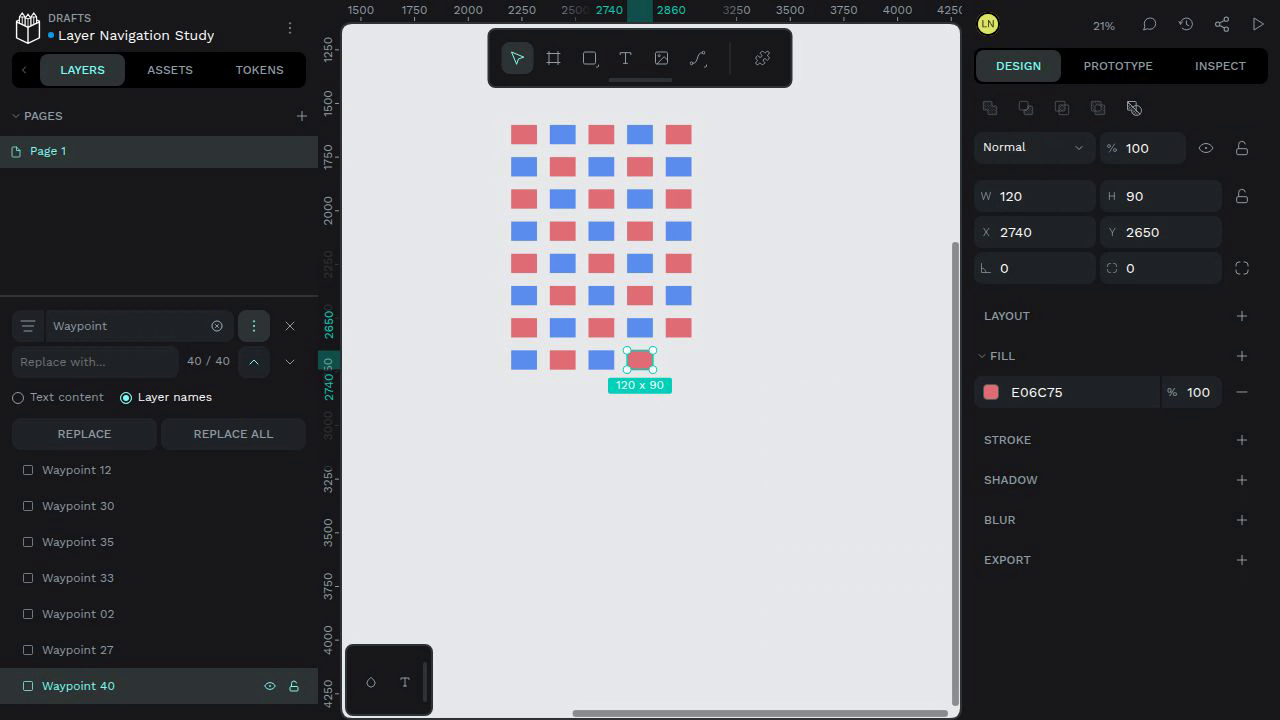
Clicking Previous changes the counter to 40 / 40 and selects Waypoint 40. The workspace shifts upward, moving the header and toolbar out of view and leaving empty space below the canvas.
#11427
Community & collaboration
Preserve pending design edits through Inspect mode and version previews
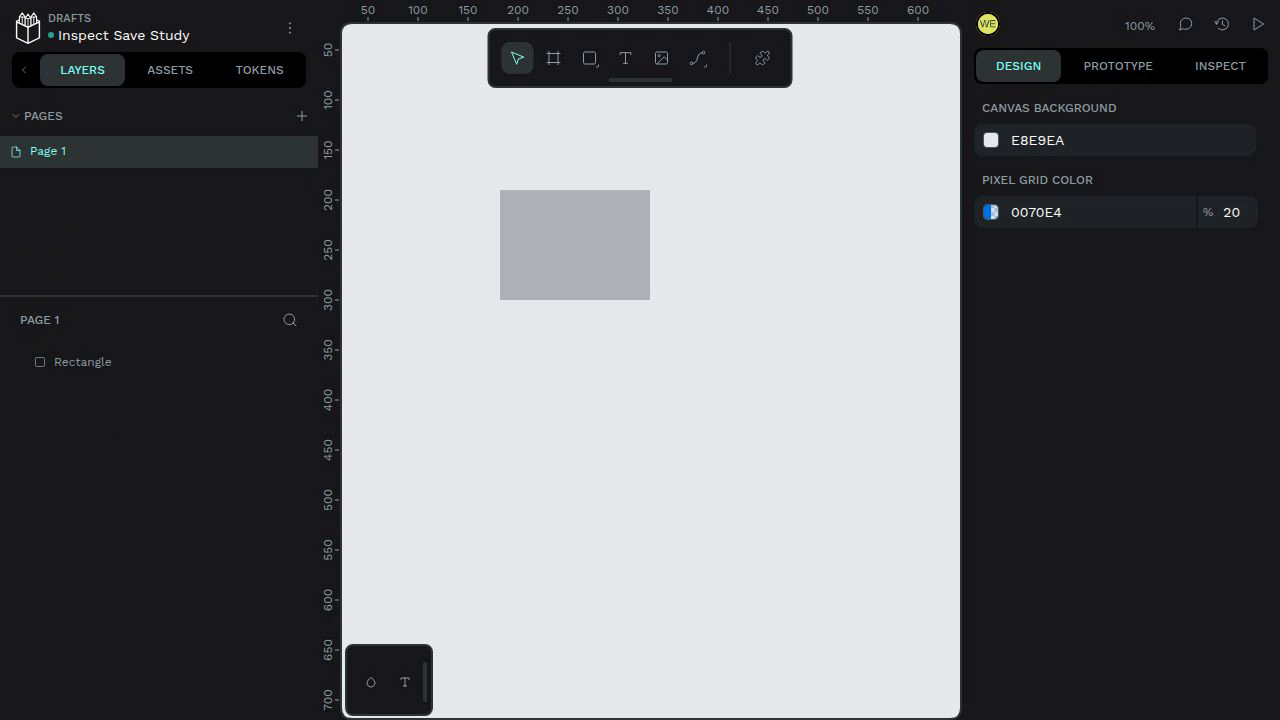
Inspect mode shows a View Only banner while the pending rectangle remains visible and the header remains in Saving beyond the autosave interval. Returning through the dashboard and reopening the same file shows that the rectangle was not saved.
#11699